Kunnskapsbase
HubSpot + Tripletex
Sist oppdatert
This document describes integration flow between HubSpot & Tripletex.
Tripletex activation: Log into Tripletex -> Integrations -> HubSpot av Integrera -> Activate
1. Customers sync
- Master is HubSpot
- Whenever customer is created/updated integration will be triggered
- Customers can be compared based on:
- email - B2C
- customerNumber - B2C or B2B (default)
- organizationNumber - B2B
- if identifier is missing in HubSpot integration will create new customer in Tripletex and update back end system
- If customer was found in Tripletex , integration will try to update it
- If customer doesn't exist in Tripletex , integration will try to create it
ℹ️ Make sure to define comparison fields prior to activating the integration
2. Contacts sync
- Master is HubSpot
- Whenever contact is created/updated integration will be triggered
- Contacts are compared based on:
- email is used for contact comparison
- If contact was found in Tripletex, integration will try to update it
- If contact doesn't exist in Tripletex, integration will try to create it
ℹ️ Make sure to define comparison fields prior to activating the integration
3. Products sync
- Initial product sync is done from HubSpot to Tripletex or vice versa
- Products are compared based on name
- name is used because unique identifier is not yet set in the end systems
- Later products are compared based on number
- If product was found in Tripletex, integration will try to update it
- If product doesn't exist in Tripletex, integration will try to create it
ℹ️ Make sure that names are unique inside HubSpot so integration don't override data.
4. Deal sync
- Master is HubSpot
- data is always transferred to Tripletex
- Whenever deal is created integration will be triggered
- When syncing deal, integration will:
- create/update/fetch customer
- email - B2C
- customerNumber - B2C or B2B (default)
- organizationNumber - B2B
- if identifier is missing in HubSpot integration will create new customer in Tripletex and update back end system
- create/update/fetch contact
- email is used for contact comparison for Tripletex
- create/update/fetch our contact
- email is used for contact comparison for Tripletex
- process order lines with products
- VAT will be put based on the order line product
- product number is used for comparison
- create/update/fetch customer
- Final output is order in Tripletex
- HubSpot will be updated with corresponding order number from Tripletex
ℹ️ Make sure that all entities included in the invoice sync process have identifiers on place so integration can find corresponding match between end systems.
5. Recurring HubSpot checks
Invoices created from orders
- will run when invoice is created from an order within Tripletex
- will detect which invoices were created from order
- will update invoice number field back to HubSpot
Paid invoices
- will run when invoice is marked as paid within Tripletex
- will detect which invoices were paid
- will update invoice status to PAID and paid date back to HubSpot
ℹ️ Make sure to define logic for all previous steps before activating webhook checks
ℹ️ Make sure to agree on webhooks checks execution prior to activating the integration
6. Mappings
Make sure to add following custom fields and name them as you like but as a key put keys described below:
Companies custom fields
- key: email, label: custom defined, type: Single-line text, validation: custom defined
- key: organization_number, label: custom defined, type: Single-line text, validation: custom defined
- key: customer_number, label: custom defined, type: Single-line text, validation: custom defined - REQUIRED (prevent editing, set by integration)
- key: billing_method, label: custom defined, type: Dropdown Select [EMAIL, EHF, MANUAL], validation: custom defined
- key: billing_email, label: custom defined, type: Single-line text, validation: custom defined
- key: tripletex_integration_id, label: custom defined, type: Single-line text, validation: custom defined - REQUIRED (prevent editing, set by integration)
Products custom fields
- key: p_l_account, label: custom defined, type: Single-line text, validation: custom defined
- key: hs_price_eur, label: custom defined, type: Single-line text, validation: custom defined
- key: hs_price_usd, label: custom defined, type: Single-line text, validation: custom defined
- key: hs_price_sek, label: custom defined, type: Single-line text, validation: custom defined
- key: hs_price_nok, label: custom defined, type: Single-line text, validation: custom defined
- key: hs_price_dkk, label: custom defined, type: Single-line text, validation: custom defined
- key: tripletex_integration_id, label: custom defined, type: Single-line text, validation: custom defined - REQUIRED (prevent editing, set by integration)
Contacts custom fields
- key: tripletex_integration_id, label: custom defined, type: Single-line text, validation: custom defined - REQUIRED (prevent editing, set by integration)
Deal custom fields
- key: invoice_number, label: custom defined, type: Single-line text, validation: custom defined - REQUIRED (prevent editing, set by integration)
- key: order_number_tripletex, label: custom defined, type: Single-line text, validation: custom defined - REQUIRED (prevent editing, set by integration)
- key: payment_date, label: custom defined, type: Date and time picker, validation: custom defined - REQUIRED (prevent editing, set by integration)
- key: payment_status, label: custom defined, type: Single-line text, validation: custom defined - REQUIRED (prevent editing, set by integration)
- key: invoice_internal_contact, label: custom defined, type: Single-line text, validation: custom defined
- tripletex_integration_id, label: custom defined, type: Single-line text, validation: custom defined - REQUIRED (prevent editing, set by integration)
- key: subscription_start_date, label: custom defined, type: Date and time picker, validation: custom defined
- key: invoice_detail, label: custom defined, type: Single-line text, validation: custom defined
ℹ️ Once custom fields are on place, inform us in order to initiate test run so integration outputs can be checked before making integration live
ℹ️ Above custom fields can be changed and additional fields can be added which should also be stated before integration becomes live
Sync Times
HubSpot private apps are deprecated, so the integration no longer receives changes from HubSpot in real time. Data is synced from HubSpot to Tripletex in two ways:
- Scheduled sync: runs automatically at the time(s) you configure.
- Once a day (for example, every day at 02:00).
- Several times a day (for example, every hour).
- On-demand sync: start a sync at any time from the Integrera app.
Real-time sync (optional)
If you need changes in HubSpot to reach Tripletex right away, you can set up a HubSpot workflow that sends data to an Integrera webhook whenever a record is created or updated.
- Ask the Integrera team for your webhook URL.
- In HubSpot, go to Automation → Workflows and create a new workflow or open an existing one.
- Set the enrollment trigger, for example “Deal stage is Closed won”
- Add the Send a webhook action (under Data ops), choose the POST method, and paste the webhook URL from Integrera.
- Review and publish the workflow.
The scheduled sync keeps running alongside the workflow, so any record the workflow misses is still picked up.
Requirements
- Workflows are not available on HubSpot’s free tier. They need a Professional or Enterprise subscription to Marketing Hub, Sales Hub, Service Hub, Data Hub, Smart CRM or Revenue Hub.
- The “Send a webhook” action needs Data Hub (formerly Operations Hub) Professional or Enterprise.
- To set up the webhook action, a user needs Edit permission for workflows (or Super Admin). To publish the workflow, they need Publish permission.
# Setup private app [DEPRECATED]
Required for full automations so integration can listen to specific event changes such as deal won, customer update, product create, etc.
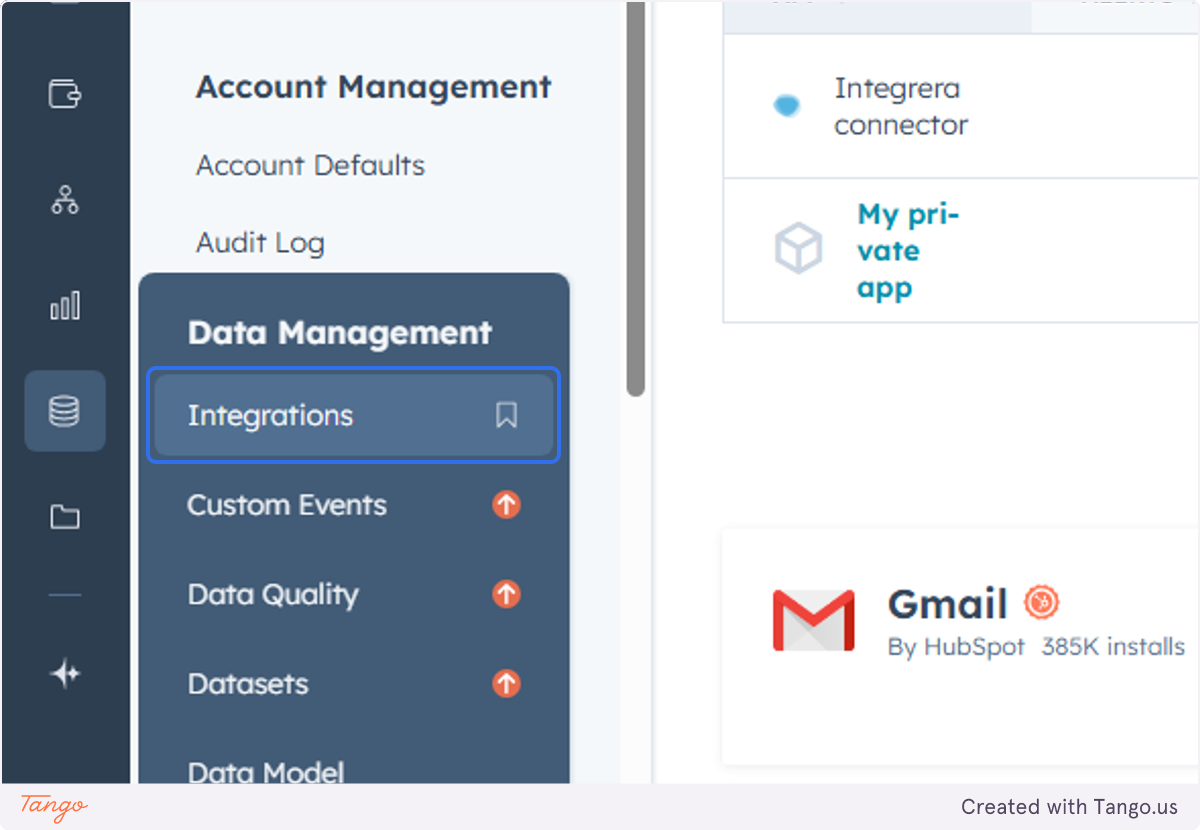
7. Navigate to "Integrations"
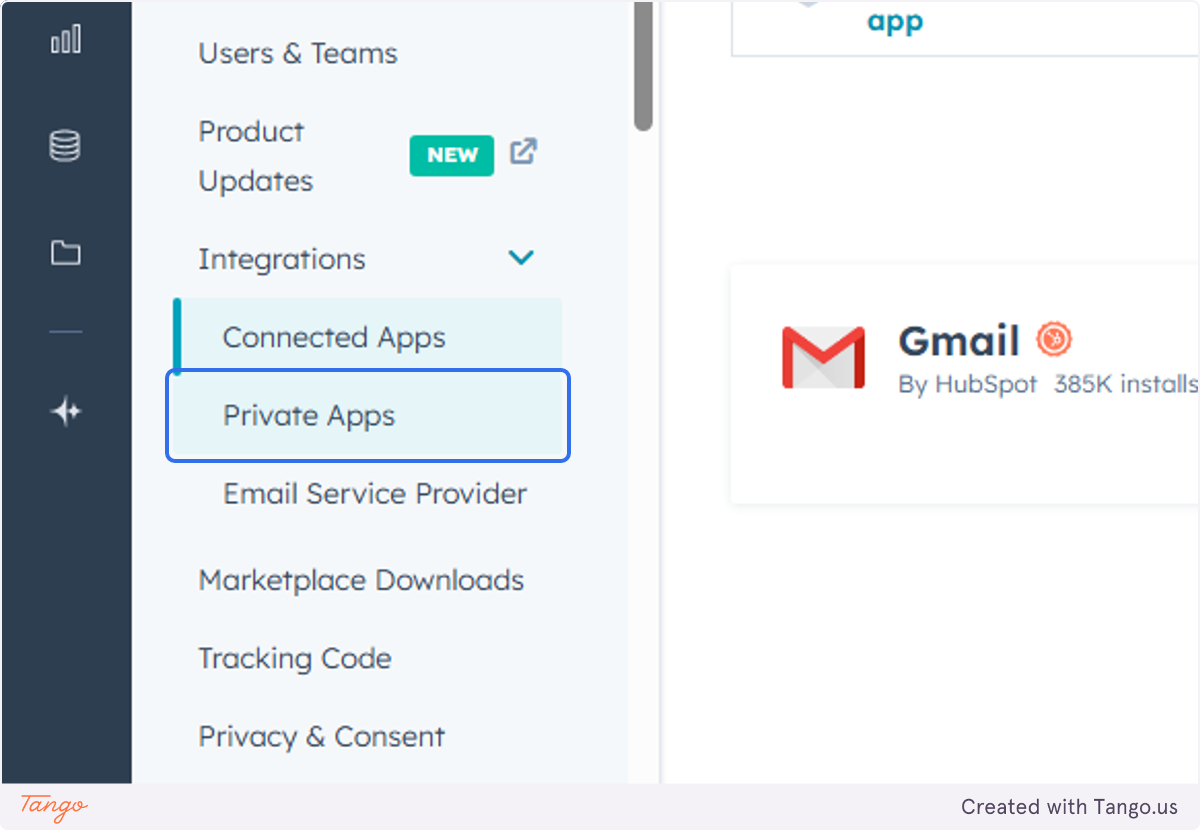
8. Navigate to "Private Apps"
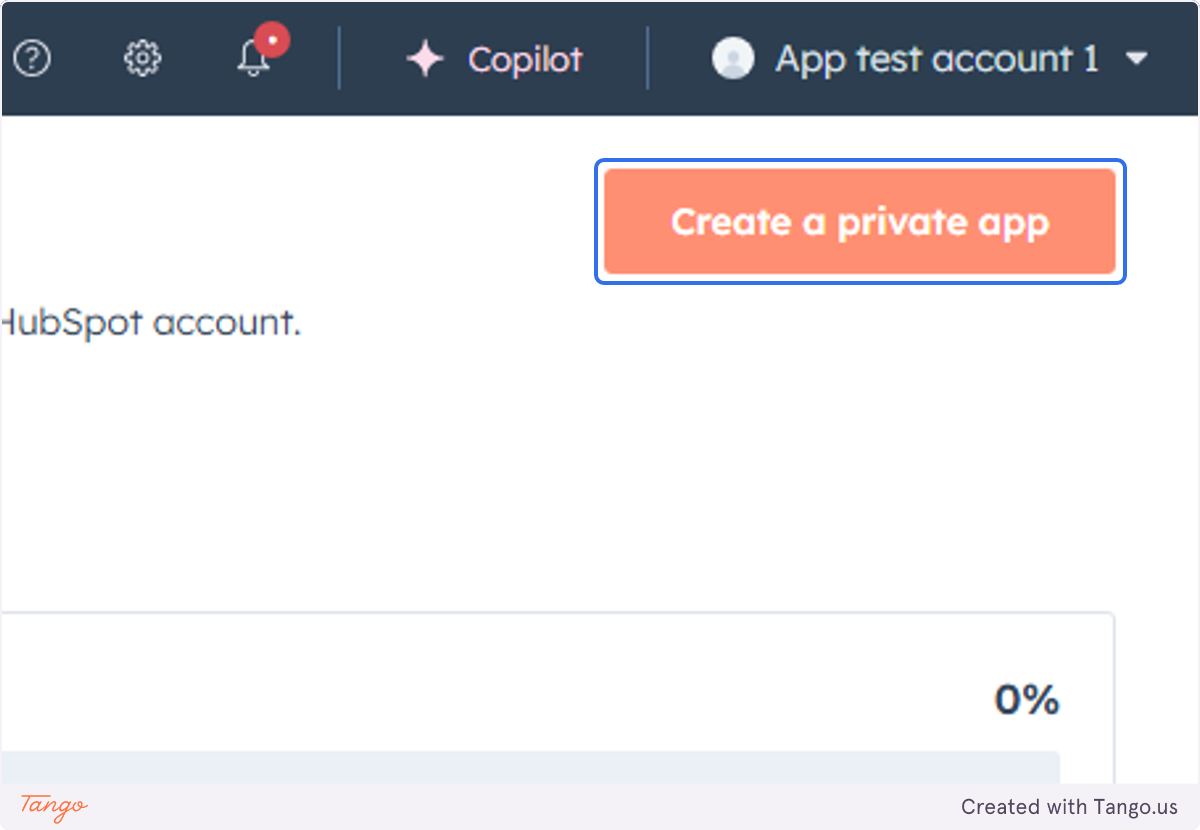
9. Click on "Create a private app"
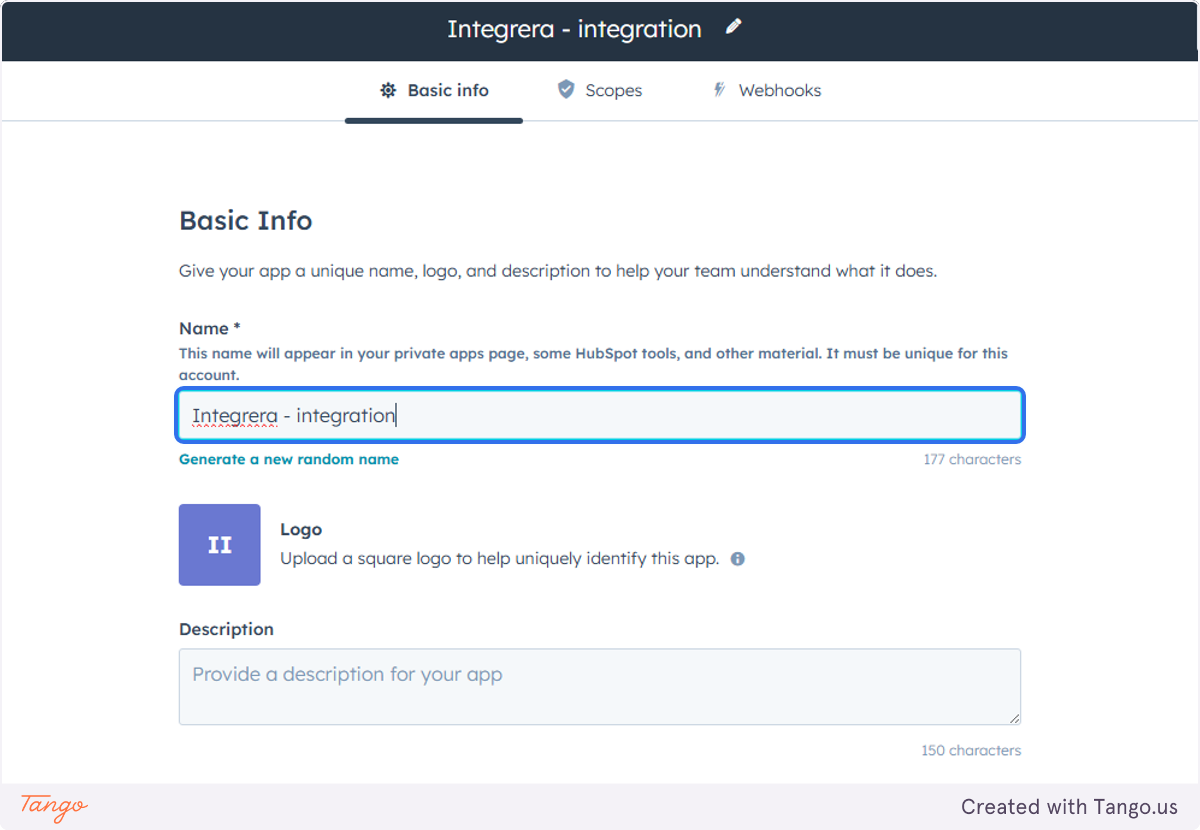
10. Type "Integrera - integration"
Choose private app name which will be recognizable in the future.
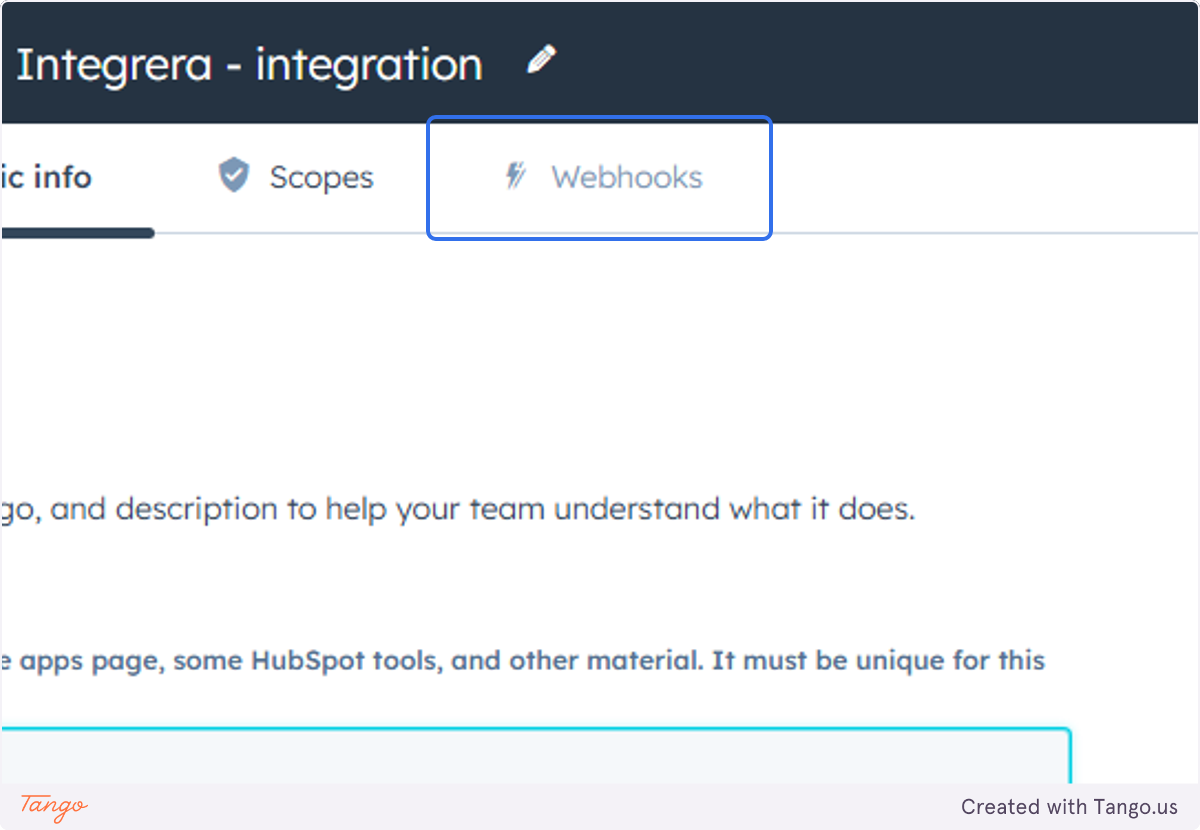
11. Configure Webhooks
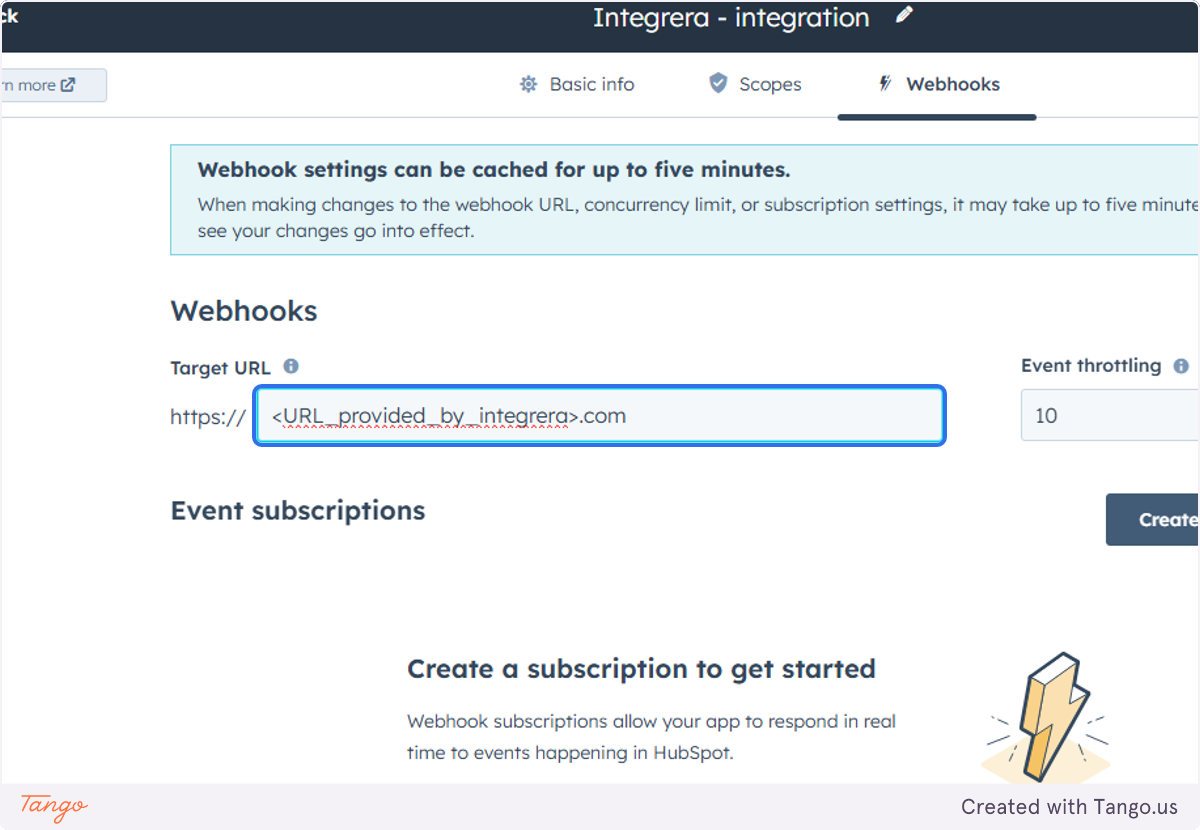
12. Enter URL provided by Integrera team"<URL_provided_by_integrera>.com"
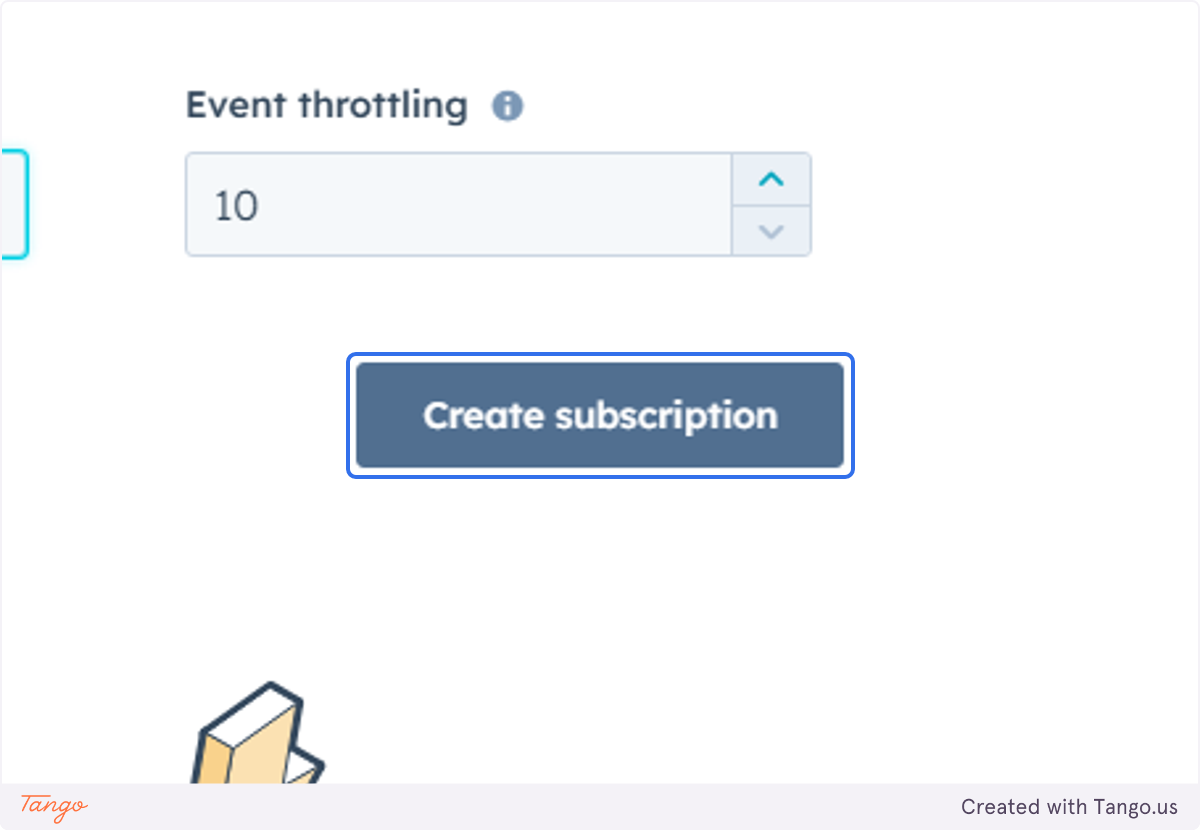
13. Click on Create subscription
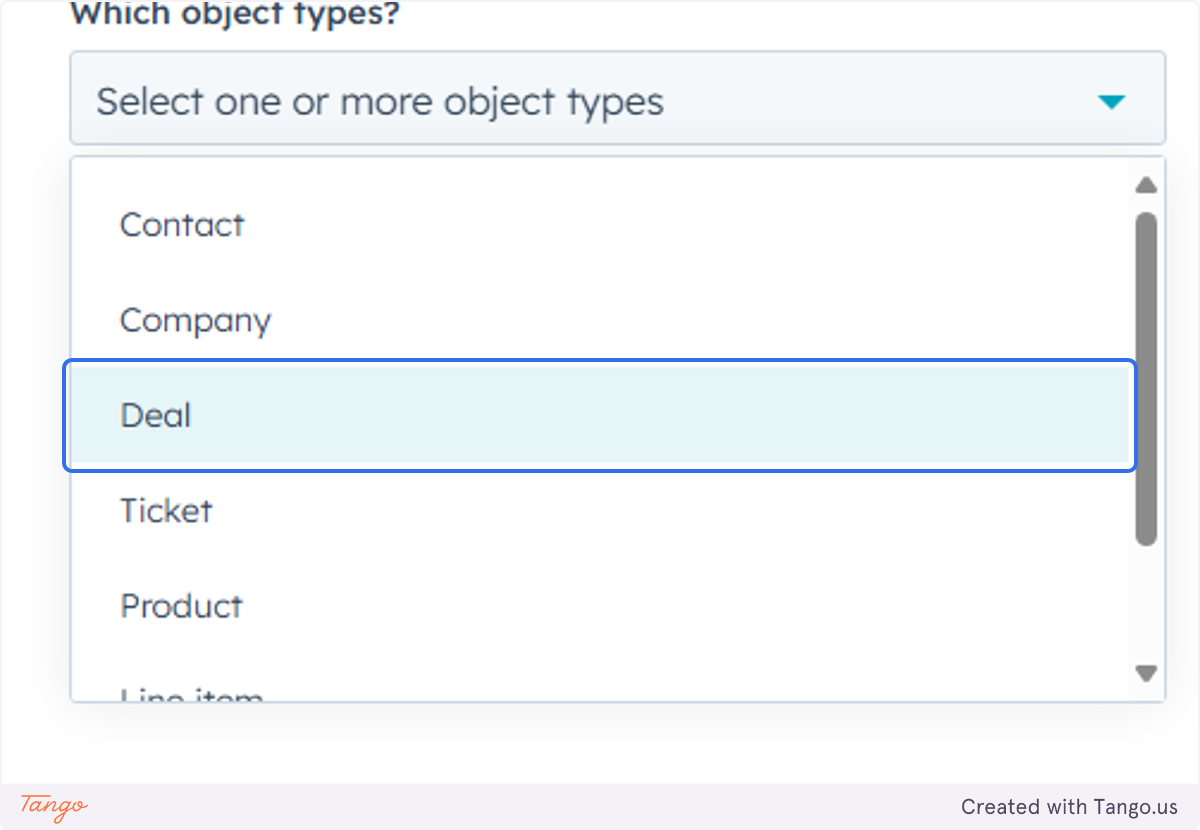
14. Select listeners - "Deal" or "Company" or something else
15. Select type of trigger - "Created"
Trigger type will decide when integration will be started.
Example. Deal created, deal property changed to won status, product created, etc.
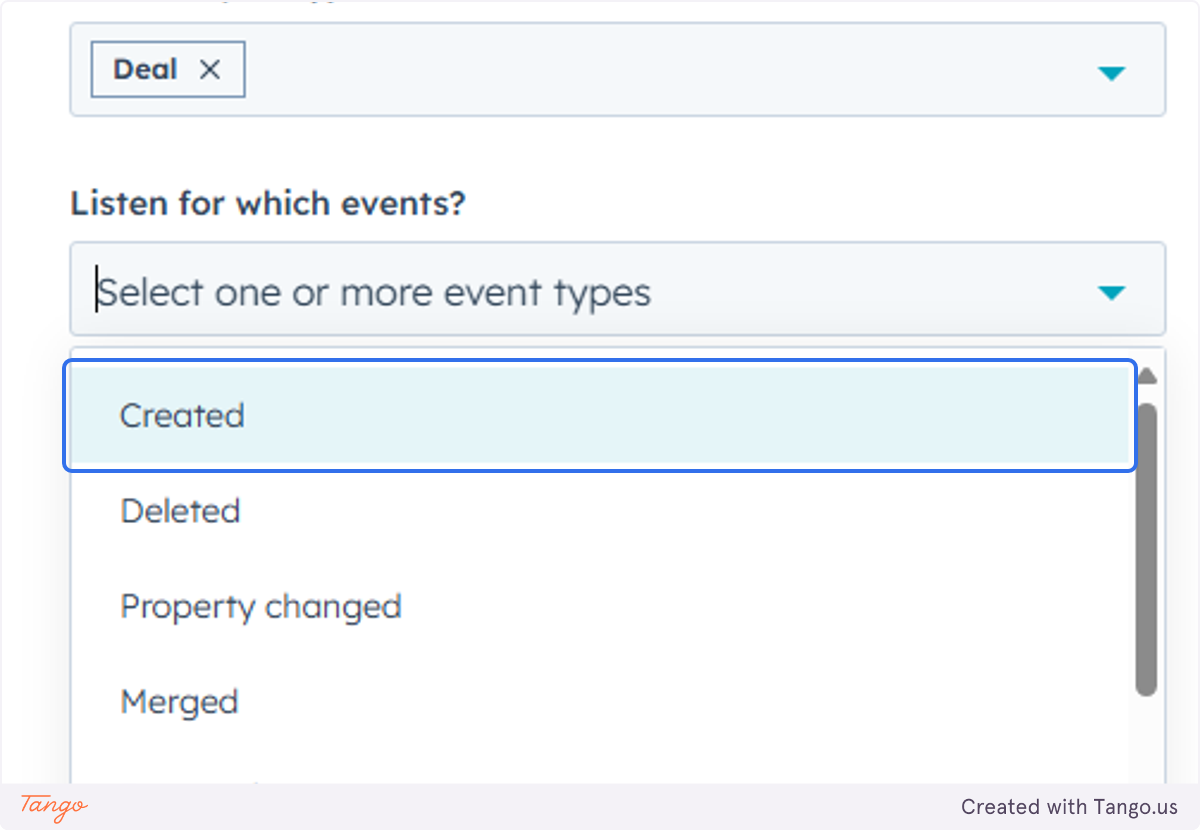
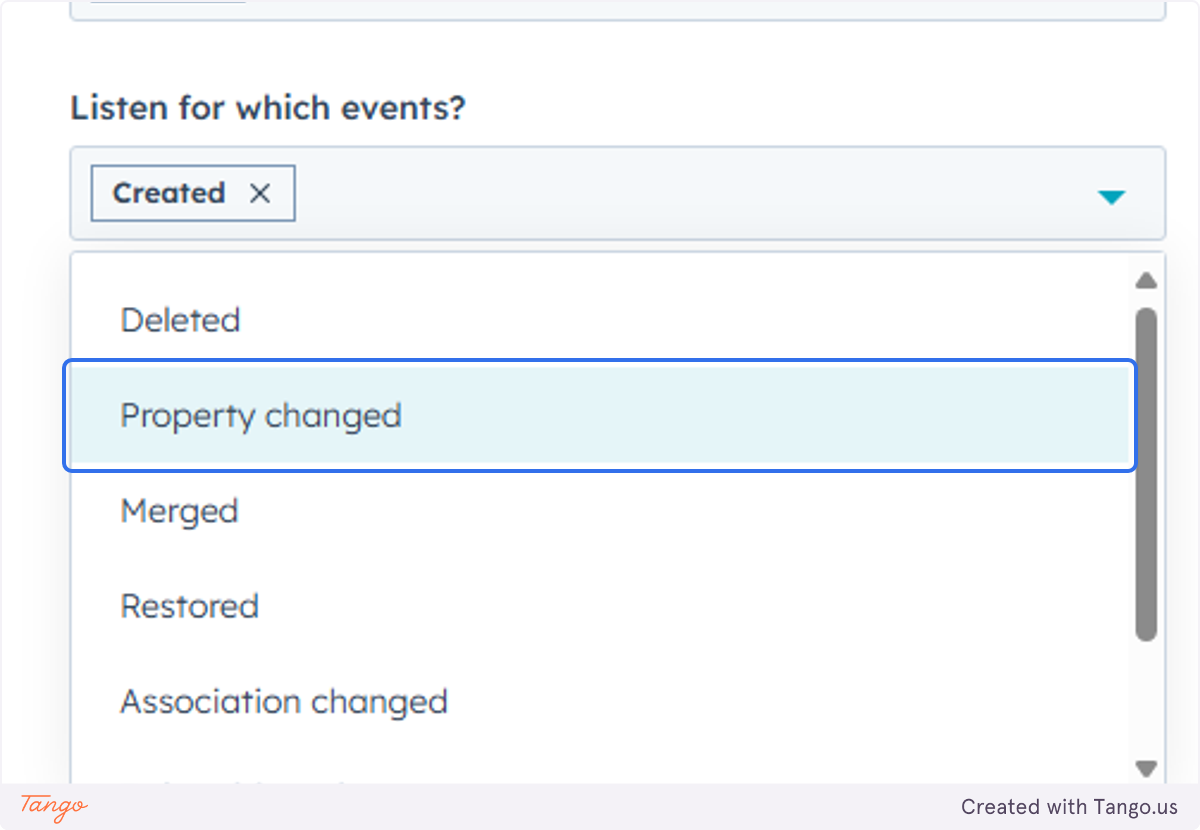
16. Select "Property changed" trigger
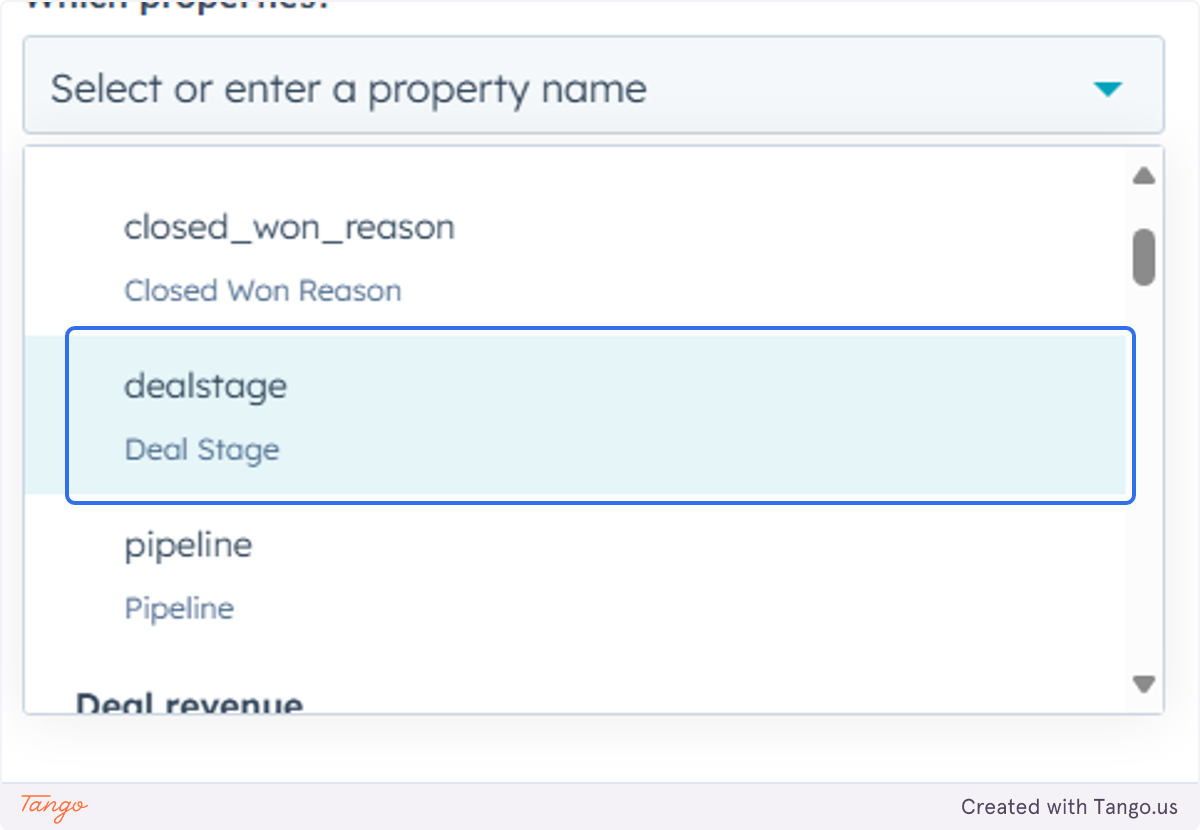
17. Listen to "deal stage" change
18. Click on "Add this required scope" if asked so
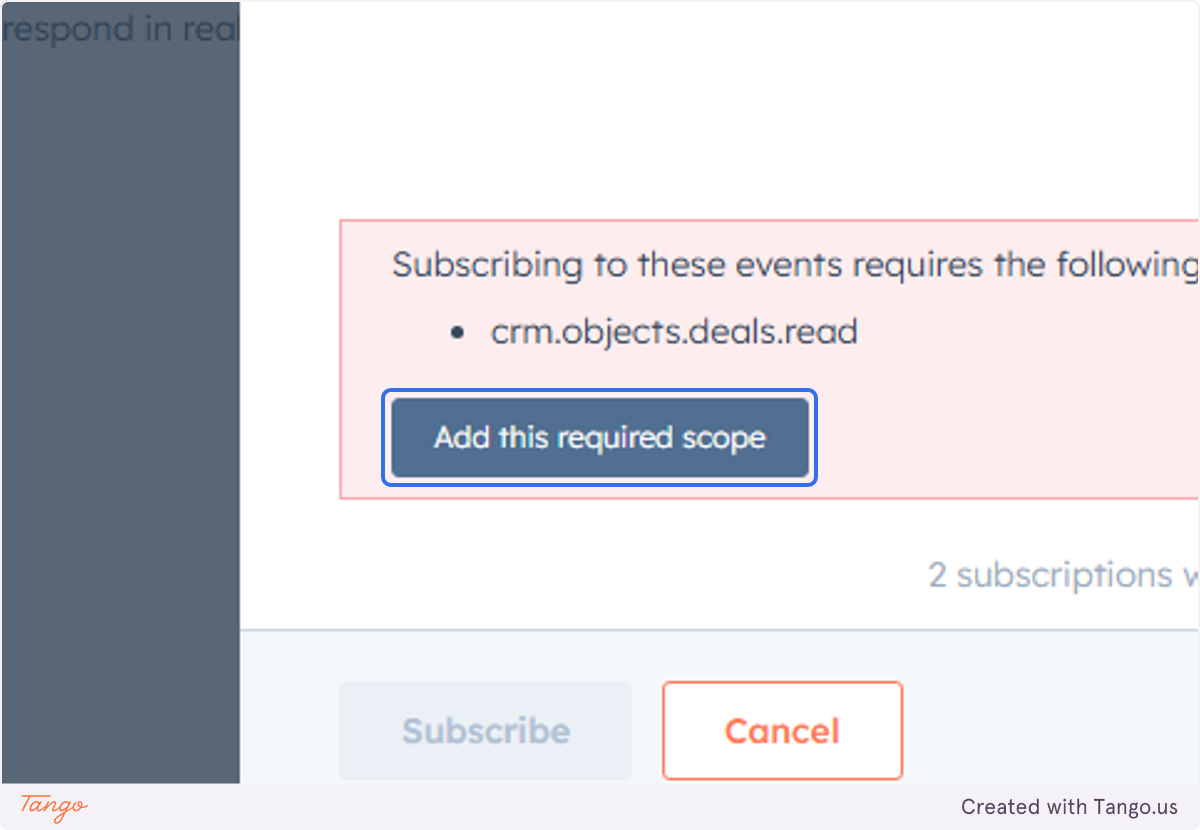
19. Click on "Subscribe" to complete setup
20. Finally, click on "Create app"
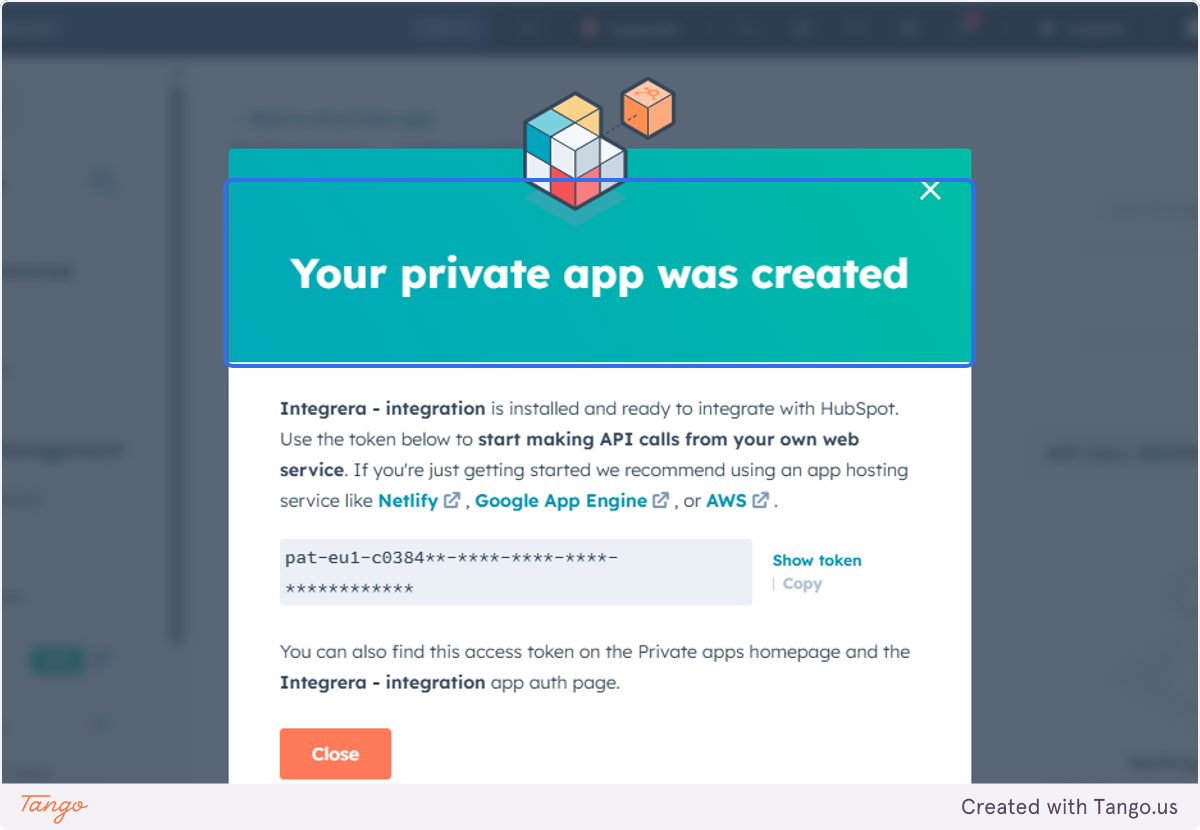
21. Private app is created - store token somewhere safe
<br />
Created with Tango.ai